Browser editors
A browser editor is the fastest way into digital drawing. Open a link, wait for the canvas to load, and start drawing. No install, no sign-up, and no demands on the operating system.
No install, and it works everywhere
The same link opens on a school laptop, a work computer, and a phone. That helps when you want to draw in different places, or when you do not have administrator rights.
- starts in five to ten seconds;
- takes no space on the drive;
- works the same on Windows, macOS, and Linux;
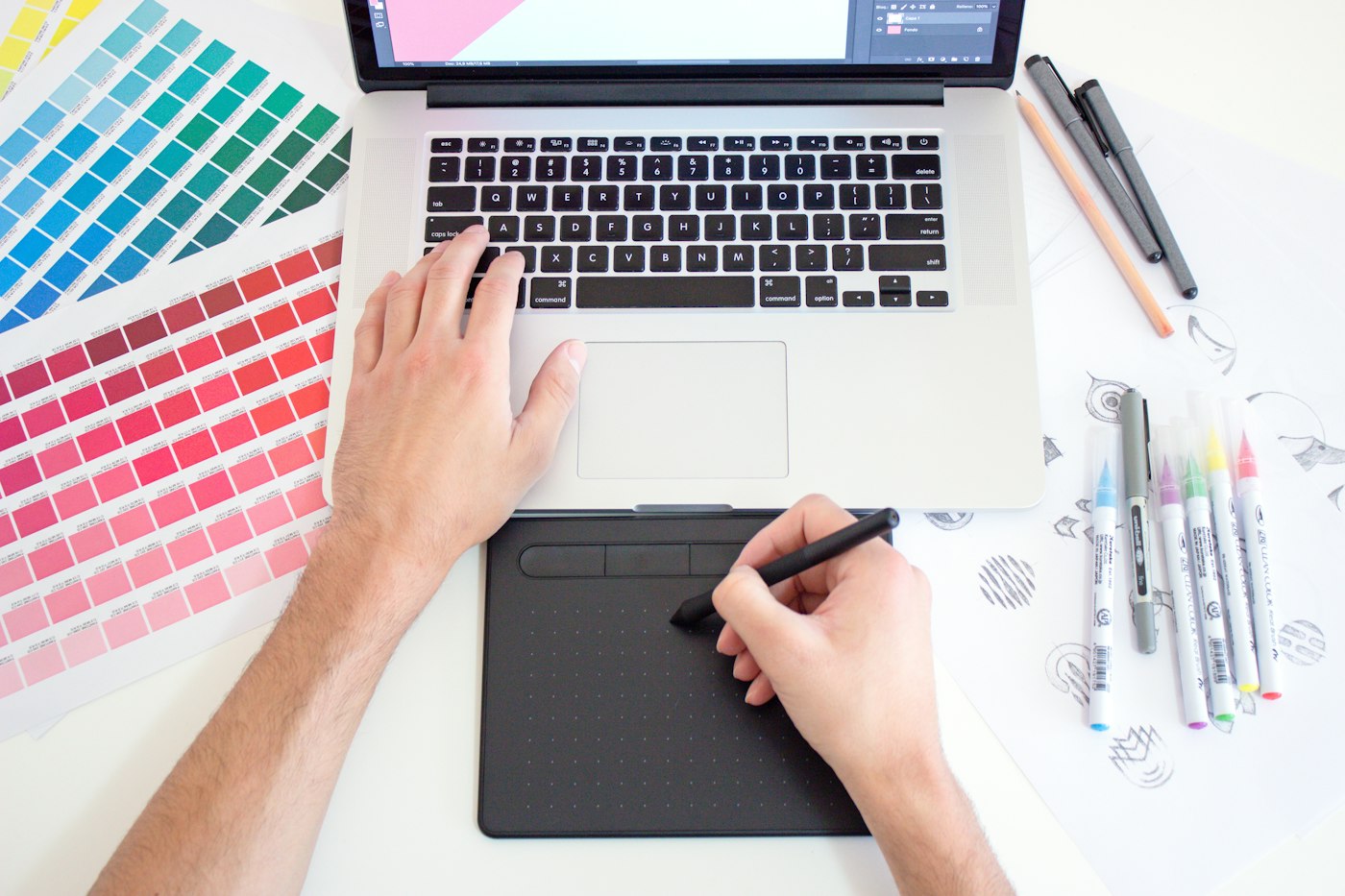
- supports a graphics tablet and pen pressure;
- you can download the file as a PNG right away.
A full walkthrough of an interface like that is in the article on how to draw in an online editor.
Limits of the browser
The browser runs in a sandbox and gets less memory than a regular program. Huge canvases and dozens of layers are heavier there. A comfortable limit is about 4000 pixels on the long side. One more thing: do not close the tab before you download the file.
Desktop programs
Free desktop editors have caught up with paid ones on almost every count. Krita, MyPaint, FireAlpaca, Medibang Paint, and GIMP cover the full range of jobs, and Inkscape handles vector.
Strong brushes and stability
The main advantage of a desktop app is the brush engine. Krita, for example, lets you set scatter, paint mixing, and stroke texture. The program uses all of your RAM and is fine with an 8000-pixel canvas and forty layers. You also get animation, scripts, and real color-profile support for print.
What the computer needs
Comfortable work needs 8 GB of RAM and any processor from the last few years. On 4 GB the program will start, but it will begin to lag on large files. A discrete graphics card is not required. Drawing loads the processor and memory, not the graphics card.
Mobile apps
A phone and a tablet cover the job of drawing anywhere. Free options here include Ibis Paint X, Medibang Paint, and Autodesk Sketchbook.
Sketches on the go
A phone is a good place to catch ideas: a composition, a silhouette, a pose sketch. Fifteen minutes on the bus gives you a real sketch. Later you can open the file on a computer and take it to a finished piece. Techniques for a small screen are in the article on drawing on a phone.
Screen size and accuracy
The downside of mobile apps is the screen size. Your finger covers the area you are drawing, and the menu takes part of the canvas. Thin details have to be done at a high zoom, and it is easy to lose the whole picture. A capacitive stylus improves accuracy, but on most phones pressure still does not work.
Tip
Do not collect six programs. Take one browser editor for quick work and one desktop program for large pieces. A tool you know beats a pile of tools: switching interfaces takes more time than the drawing itself.
How to choose for the job
Choose the tool by what you are going to draw, not by how many features it lists. Here are three common cases.
Sketching and line art
What matters here is line stabilization, pressure sensitivity, and a fast start. A browser editor and FireAlpaca handle this very well: a light interface and good smoothing. A heavy program only gets in the way of sketches. It takes too long to open. How to set the pen is covered in the guide to line stabilization and pressure.
Painting and texture
Painting needs a rich set of brushes and color mixing. Krita and MyPaint win here: they can imitate oil and watercolor. A large canvas, blend modes, and masks will help.
Vector work and logos
Logos, icons, and lettering are drawn with curves, not pixels. Free Inkscape covers that job completely and exports to SVG. The difference between the two approaches is explained in the article on raster vs vector.
What to check in free software
Free does not mean there is no catch. Before you invest hours of practice in a program, run it through a short list.
Export without a watermark
Check this first:
- Draw two or three strokes on an empty canvas.
- Export the file to PNG and JPG.
- Open the result in a viewer and look for the program's logo.
- Make sure the resolution matches the canvas and has not been cropped.
- Check that the layered file opens without a subscription.
If export is limited to 1000 pixels or stamps a signature on the file, look for another option.
Layers and pressure
Two things are required: layer support, and a response to pen pressure. Without layers you cannot edit color separately from the outline, and that is the basis of digital drawing. Why that matters is covered in the article on layers in a graphics editor. Also look at keyboard shortcuts: being able to reassign them saves hours of work.
Time to draw, not just read
Theory fades in a couple of days if you never use it. Open the editor and spend 15 minutes on what you just read. That is enough for the skill to stick.
Try it now
A free online editor: brushes, layers, a palette, and a shared canvas. No install and no sign-up.
Start drawingTopics in this guide
- free drawing apps
- free graphics editor
- draw for free
- software for digital drawing
- editor with no sign-up
← Export without quality loss: an export checklist Draw together online: one canvas for everyone →