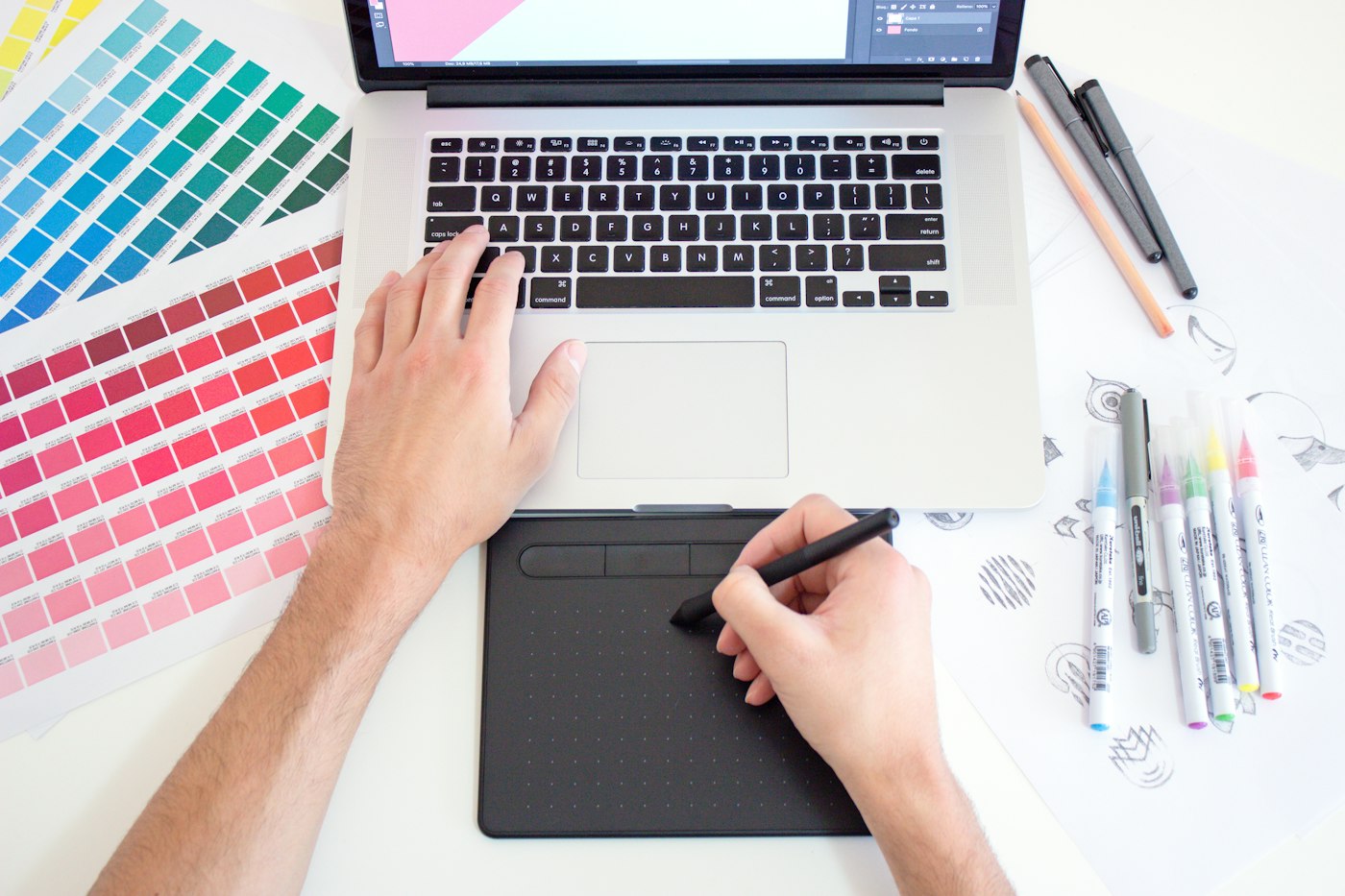
Step 1: drivers
A driver is the program that tells the system a pen is connected, not a mouse. Without it, the graphics tablet works like a big touchpad: the cursor moves, and pressure is not read. Every setup starts with this step.
Only from the maker's site
Download the driver from the official site of your brand, in the support section. Pick the exact model. Drivers from a neighboring series often do not fit. Skip the disc that came in the box too: the version on it is usually a couple of years old.
Remove conflicting versions
If the tablet acts strangely, leftover pieces of an old driver are often the cause. A clean install goes like this:
- Unplug the tablet from the computer.
- Remove the old driver from the list of installed programs.
- Restart the computer.
- Install the new driver and restart again.
- Plug the tablet in and open the settings panel.
If a driver from another maker is still on the system, remove that too. Two programs like that almost always conflict.
Step 2: the active area
The active area decides which part of the tablet matches which part of the screen. The setting takes a minute, and the comfort changes a lot.
Map it to one monitor
With two monitors, the tablet stretches across both by default. The cursor then flies onto the other screen from the slightest movement. In the settings, choose one monitor: the one where the editor is open. A button on the pen is a better way to switch between screens.
Keep the screen proportions
Turn on the option that keeps proportions. Without it, a circle on the tablet becomes an oval on the screen: the tablet is often 16:10, and the monitor is often 16:9. The hand gets used to the distortion quickly, and later the lines drift even on paper.
While you are there, limit the active area if the tablet is large. For an A4 tablet, it is comfortable to leave a working area about the size of A5. Then the hand moves from the elbow instead of reaching across the whole desk.
Step 3: the pen
The pen is the main tool, and it is worth fitting to your hand. Two settings matter: how hard you press, and what the buttons do.
Pressure sensitivity
The driver panel has a slider from soft to firm. If the line jumps to full width immediately, move it toward firm. If you have to press all the way down, move it toward soft. Draw without strain: a pen set up correctly responds to the lightest touch, and the hand does not tire after twenty minutes. Fine-tuning the curve is covered in the article on line stabilization and pressure.
What the buttons do
A pen usually has two buttons. The most useful layout looks like this:
- the lower button: eyedropper;
- the upper button: undo;
- a button on the tablet body: switch between brush and eraser;
- a second tablet button: pan the canvas;
- a third: mirror the canvas so you can check the drawing.
Do not assign more than two functions to the pen. You will hit them by accident. Keep the rest on the keyboard. A basic set is in the collection of keyboard shortcuts for artists.
Check
After setup, draw one line from edge to edge of the canvas, gradually increasing pressure. It should widen smoothly from a hairline to the full brush size, with no steps and no breaks. If you see steps, go back to the sensitivity slider.
Step 4: test it in the editor
The driver panel only shows what the system sees. Do the final check in the editor where you actually plan to draw.
A pressure test
Create a canvas at 2000 × 1000 pixels and take a round brush at 30 pixels. Draw five lines at different strengths. The width should differ clearly. Then check opacity on pressure: a light touch should leave a pale mark.
A lag test
Quickly draw a zigzag and see whether the line lags behind the pen. A small delay is normal. A noticeable one is not. The cause can be stabilization turned all the way up, or a canvas that is too large. The calculations in the article on resolution and DPI help with that.
Common problems
Almost every tablet failure is fixed with two or three actions. Here are the ones that come up most.
Pressure does not work in the browser
The browser receives pen data through a separate interface, and sometimes the driver does not pass it along. In the driver settings, turn on browser compatibility mode, update the browser, and reload the tab. Turning off mouse mode in the tablet panel also helps. If nothing worked, try another browser. Behavior differs a lot.
The cursor is offset
The cursor sits off to the side of the pen tip. That means calibration is off, or the wrong monitor is selected. Run calibration in the driver and tap the four crosshairs carefully. Check the system scaling: at 125% or 150%, the offset shows up often. Hold the pen upright too. A steep tilt always adds a small shift, and that is normal. For what else affects comfort, see the guide to graphics tablets for beginners.
Time to draw, not just read
Theory fades in a couple of days if you never use it. Open the editor and spend 15 minutes on what you just read. That is enough for the skill to stick.
Try it now
A free online editor: brushes, layers, a palette, and a shared canvas. No install and no sign-up.
Start drawingTopics in this guide
- how to set up a graphics tablet
- graphics tablet setup
- tablet drivers
- pen buttons
- tablet not responding
← Draw together online: one canvas for everyone Digital vs traditional: what a beginner should choose →