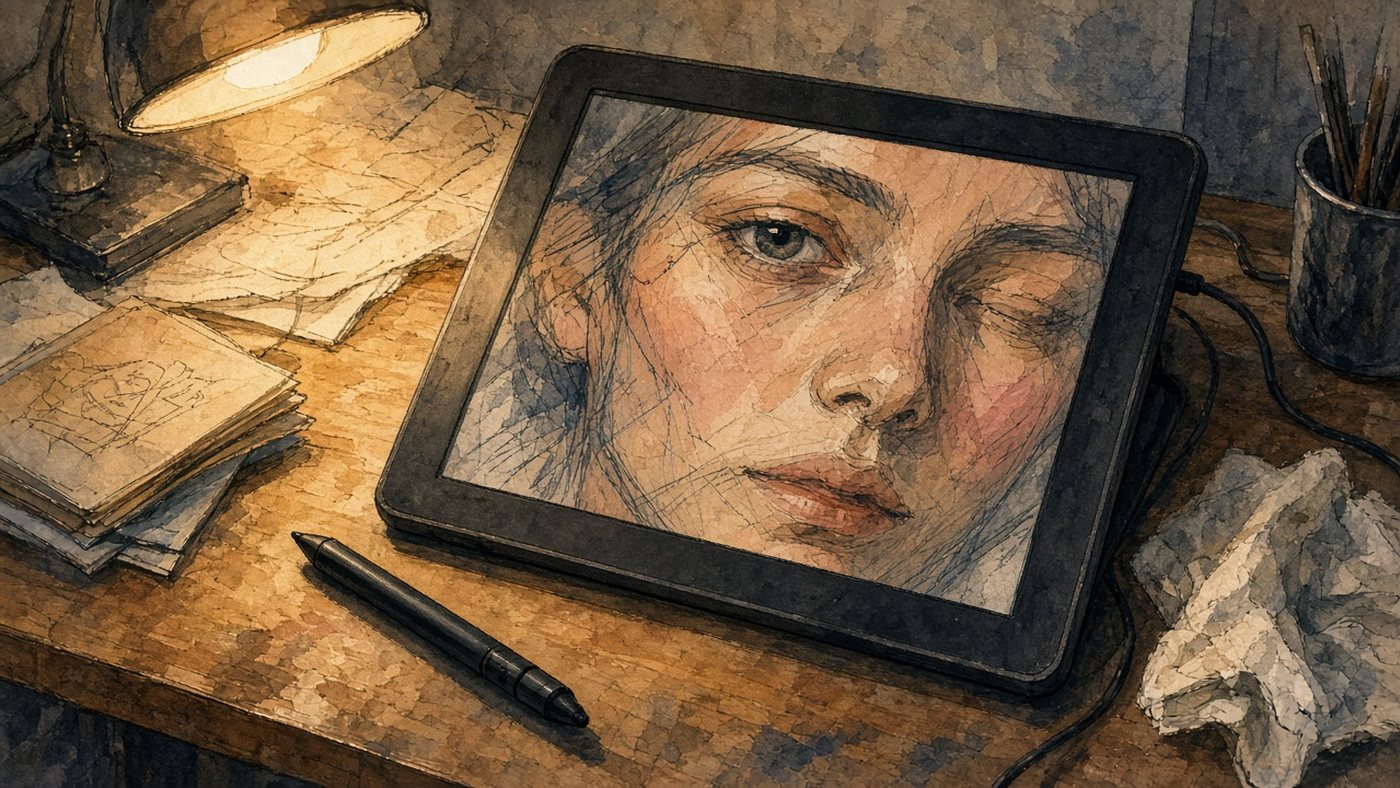
Two types of tablets
The market has two fundamentally different devices: a pen tablet without a screen and a display tablet with a screen under the pen. Both send pressure and tilt; both work for professional art. The difference is where your eyes look and how much you pay for direct aiming.
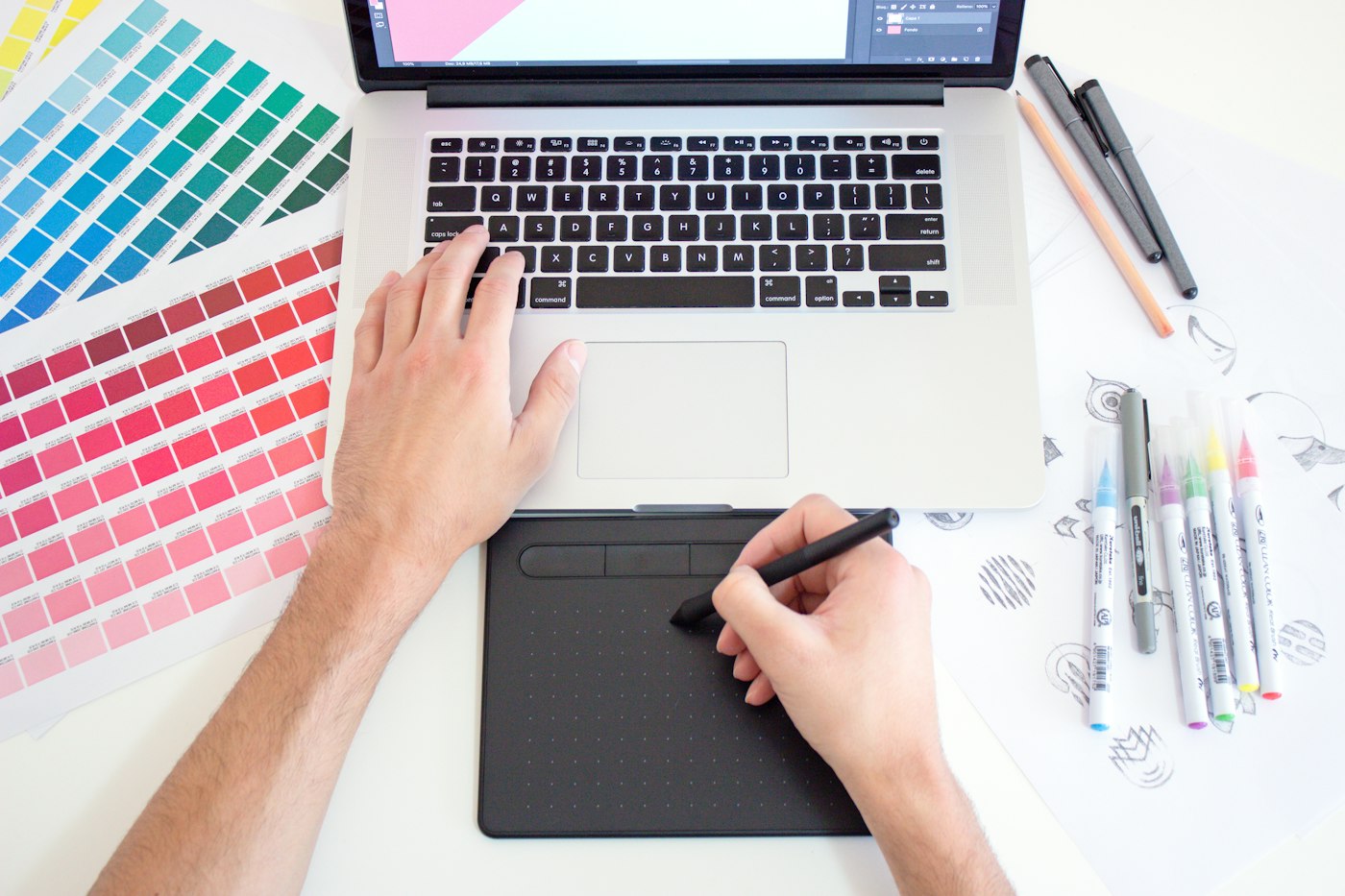
Pen tablet: pen + monitor
The work area is a black pad on your desk. The drawing appears on your computer monitor while your hand moves on the tablet without looking down. The link between motion and cursor is mathematical: angle and scale are set in the driver. For formats and sizes, see the guide on graphics tablets for beginners.
Display: screen under the pen
The image is drawn where the pen touches—like paper, but digital. Hand-eye coordination feels natural from day one. The device is heavier, pricier, needs power cables, and desk space. Part of the screen sits under your palm unless palm rejection is on.
Hand-eye coordination and getting used to it
The main argument against a pen tablet is “I cannot hit the line.” That is not a defect; it is a skill that grows with hours, not dollars.
How many days to adapt
Most beginners lose the “I am drawing in the wrong place” feeling in 3–7 days at about an hour a day. By day 14 the brain often stops noticing the gap between hand and screen. If you still miss constantly after three weeks, check active area scale in the driver: a tiny zone forces micro-movements and makes errors worse.
Exercises on a pen tablet
Do not start with a detailed portrait. First sessions are large shapes only, eyes on the monitor:
- trace a palm-sized circle without looking at the tablet;
- connect two points on screen with a straight line ten times;
- write your name large, watching only the monitor;
- repeat the next day—progress is usually obvious by the third session.
Also tune pen sensitivity using how to set up a graphics tablet—a bad pressure curve can look like “I cannot aim.”
Budget and PC resources
A display tablet is not just the box price. It pulls GPU requirements, cables, and sometimes a power brick.
Display needs a GPU
The tablet screen is a second display at high resolution. On weak integrated graphics, a 4K canvas may stutter when you rotate or zoom. A comfortable minimum: a dedicated video output, 8 GB RAM, and an SSD. A pen tablet barely loads the system: the driver sends coordinates and only the main monitor renders.
Pen tablet and a weak laptop
A screenless A5-class model fits students and anyone drawing in a browser editor on a normal laptop. One USB port, no outlet for the tablet, less heat on your lap. On a tight budget, a pen tablet often delivers 80% of line quality for 30–40% of a display-class price.
Tip
Do not buy a display “for the future” if your PC barely runs a browser with twenty tabs. First check whether a full-screen canvas scrolls smoothly on your current monitor—that predicts how a display tablet will behave.
Ergonomics and portability
Where you draw—fixed desk, dorm, or travel—often matters more than screen type.
Display screen angle
A display tablet usually lies almost flat. Neck and back complain after an hour unless you use a stand or a model with an adjustable mount. You can put a pen tablet on your lap and raise the monitor to eye level—posture closer to a normal desk setup.
Pen tablet in a bag
A thin pad and pen fit in a backpack with a laptop. In a café you draw on the laptop screen you already know. People travel with displays less often: weight, glass, and power. For mobility, iPad or pen tablet wins over a 13-inch display more often than not.
When to buy what
There is no single “correct” first tablet—only a match for budget, patience, and tasks.
Start with a pen tablet
A sensible start if:
- you are not sure you will still be drawing in six months;
- your budget does not reach a display but you want to draw now;
- most work is sketches, line art, or study pieces;
- the PC is weak or one monitor is already full of code and spreadsheets.
After a year on a pen tablet you will know whether you need a screen under the pen or just a better monitor.
Moving to a display
Paying extra makes sense when:
- you draw daily, pen-tablet coordination is fine, but you want faster tracing;
- you work over scans, calligraphy, or tight line art;
- you have desk space, a solid PC, and willingness to manage two screens;
- you tried someone else’s display and the comfort gap was obvious, not marketing.
A display does not improve taste or composition—it removes one layer of friction. Skill still grows from practice, not device price.
Time to draw, not just read
Theory fades in a couple of days if you never use it. Open the editor and spend 15 minutes on what you just read. That is enough for the skill to stick.
Try it now
A free online editor: brushes, layers, a palette, and a shared canvas. No install and no sign-up.
Start drawingTopics in this guide
- display tablet
- pen tablet without screen
- graphics tablet
- which tablet to buy
- drawing tablet for beginners
← How to draw people with a mouse: figure and face Brush Engine Settings: Spacing, Jitter, and Texture →