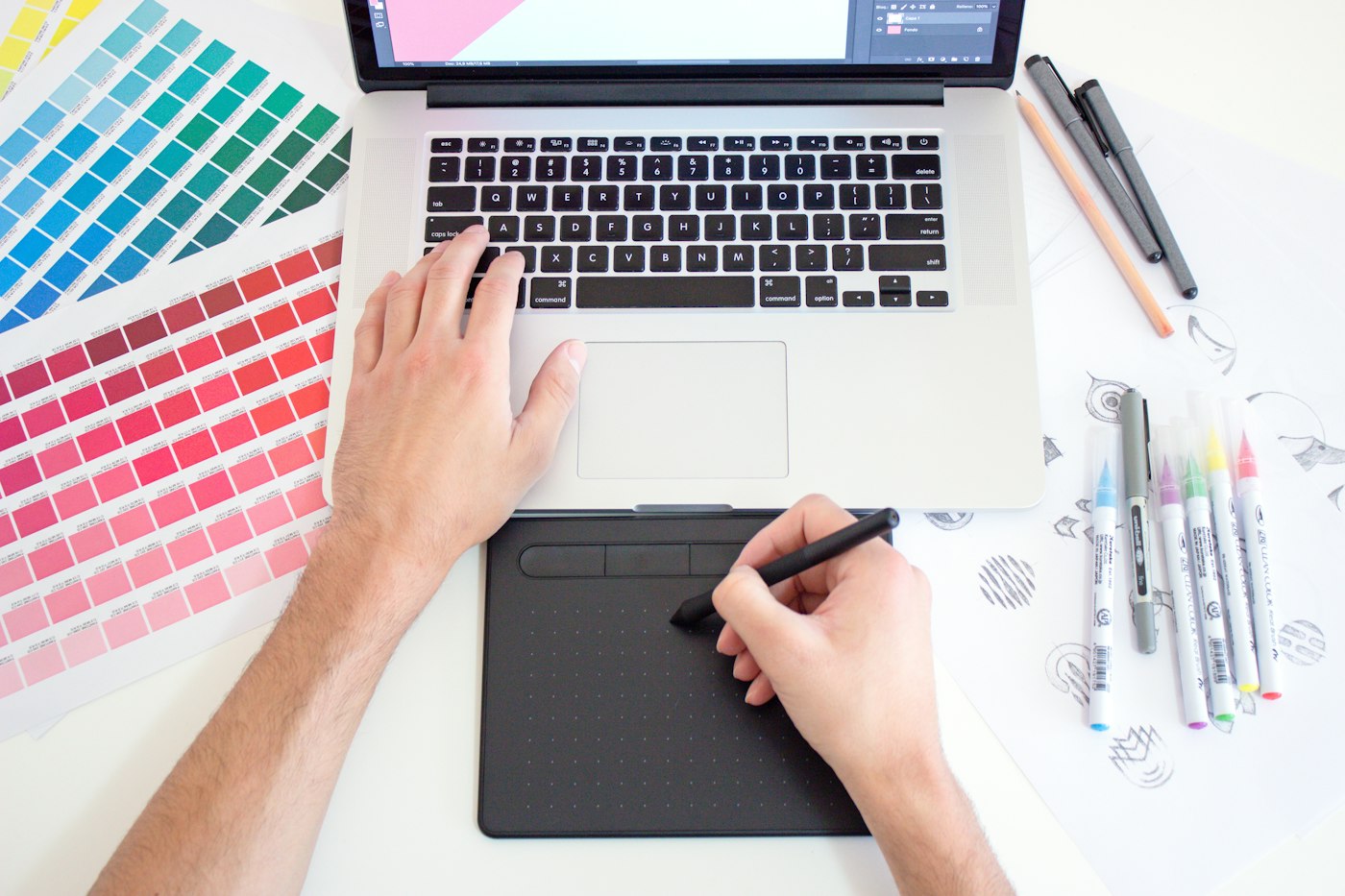
Do you need a tablet at all
A tablet is not a ticket into drawing. It is a comfort tool. It passes along pen pressure and tilt, so the line becomes lively without manual settings. But you can start learning with whatever is already on the desk.
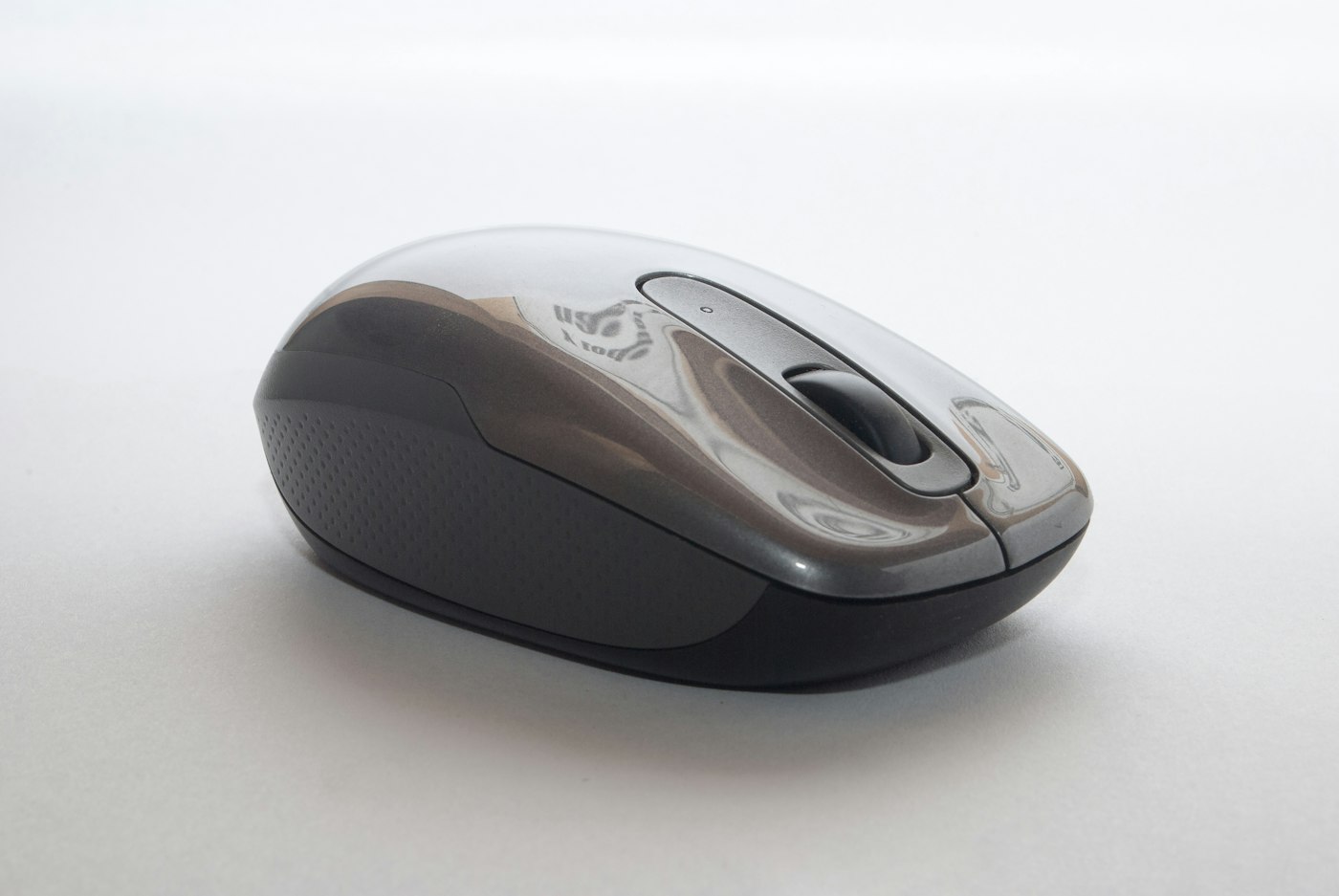
What you can do with a mouse
With a mouse you can really make line art, flat illustrations, icons, and pixel art. The approach is different: you work in short segments, fills, and vector curves instead of long painterly strokes. The techniques are covered in the article on drawing with a mouse on a computer.
When a tablet is actually needed
There are three honest signals that it is time:
- you draw regularly and you are hitting the mouse, not your skill;
- you want painting with soft transitions and a line that changes thickness;
- working with shapes and fills has started to annoy you because it is slow.
If this is your second day of drawing, wait a month. A tablet bought "for motivation" usually ends up in a drawer.
Three specs that matter
Model descriptions list dozens of specs, and most of them do not affect a beginner's comfort. Look at three items and ignore the rest.
Active area size
A5 is the sweet spot to start. The brush is driven by the movement of your hand, the tablet does not take half the desk, and the cursor crosses the screen without extra repositioning. A6 is handy for travel, but a small detail on it needs a strong zoom. Large A4 models are good for wide strokes from the elbow, but they need a lot of space and some getting used to.
Pressure levels
The numbers in the descriptions go up to 8192 levels, and this is a case where more does not mean better. Your hand cannot tell those steps apart: you will not feel the difference between 4096 and 8192. The practical minimum is 2048 levels. That is enough for a smooth shift from a thin line to a dense stroke.
A battery-free pen
A pen on passive technology does not need charging and does not die in the middle of a session. It is lighter, because there is no battery inside. While you are at it, check for a side button. It is convenient to assign the eyedropper or undo to it.
Tip
Before you buy, hold the pen if you can. A body that is too thin or too slippery tires your hand in half an hour. That spec is not written on the sheet, but it matters more than pressure levels.
Screen and screenless models
A screenless tablet is a black slab: you draw on it and look at the monitor. On a screen model, the tablet itself shows the picture, and the pen moves right on the image.
Why screenless is a good start
This kind of tablet is noticeably cheaper, lighter, and it does not heat up. It connects with one cable and does not need a separate power supply. The split of "hand here, eyes there" feels strange for the first two or three days. Then the brain adapts and stops noticing. A simple exercise speeds that up: trace large circles while looking only at the screen.
Who needs a screen
A screen wins where hitting the exact spot matters: calligraphy, detailed line art, working over someone else's sketch. The downsides are real too. Your hand covers part of the drawing, the surface heats up, and you need a second cable and room on the desk. For a first tablet, that is extra complication.
Tablet, iPad, or phone
A graphics tablet is not the only option. The choice depends on where and how you plan to draw.
Mobility versus precision
A desktop tablet ties you to a computer, but it gives you a large screen and a full set of tools. A tablet with a pen, such as an iPad, lets you draw on the couch and on a trip. There is a separate guide on drawing on iPad and how to set it up. A phone is only good for quick sketches: the screen is too small for detailed work. A lot of people end up combining formats: sketches on the go, the finished piece at the computer.
Browser compatibility
Browser editors read pressure through the Pointer Events standard, and current models work with it without extra fuss. The pairing is easy to test:
- connect the tablet and install the drivers from the manufacturer's site;
- open the editor in the browser;
- pick a brush with size tied to pressure;
- draw a line while increasing the pressure smoothly;
- see whether the stroke thickness changes.
If the thickness does not change, it is almost always the drivers. The steps are described in the guide on how to set up a graphics tablet.
Where you should not cut costs
The difference between a good buy and a miserable one is usually not in the specs. It is in the small things around the device.
Drivers and support
A tablet without a decent driver is just a slab. Before you buy, find the support section on the manufacturer's site and make sure there is a version for your operating system and a recent update date. Completely no-name models often lose support within a year, and after a system update the pen stops reading pressure.
Replacement nibs
The pen nib wears down from friction. It is a consumable. If you draw every day, you replace it every few months. Make sure spares are sold separately and fit your model. A worn nib scratches the tablet surface, and that damage does not come back.
What it costs to start
The good news: getting into digital drawing costs less than it looks. Expensive models buy comfort, not line quality.
A budget kit
The minimum kit looks like this: a screenless A5 tablet, a battery-free pen, and a free editor in the browser. That is it. You do not need paid software or subscriptions to learn. Brushes, layers, and a palette are available for free. If you want to understand the format before you buy, try the approach in the article on drawing on a tablet without paper.
What to buy later
After a few months of regular practice, spare nibs, a protective film for the active area, and a second monitor will be useful. Upgrading the tablet itself only makes sense once you know exactly what you are missing. Nine times out of ten, that first A5 stays the main tool for years.
Time to draw, not just read
Theory fades in a couple of days if you never use it. Open the editor and spend 15 minutes on what you just read. That is enough for the skill to stick.
Try it now
A free online editor: brushes, layers, a palette, and a shared canvas. No install and no sign-up.
Start drawingTopics in this guide
- graphics tablet
- how to choose a drawing tablet
- graphics tablet guide
- tablet for a beginner
- pen pressure levels
← Top 5 Brushes for Digital Painting: How to Set Them Up Drawing with a Mouse: How to Draw on a Computer Without a Tablet →